

Login
We've finished Registration and now it's time to allow registered users to log back in. First, add screens to the IB for login.
Interface Builder Setup
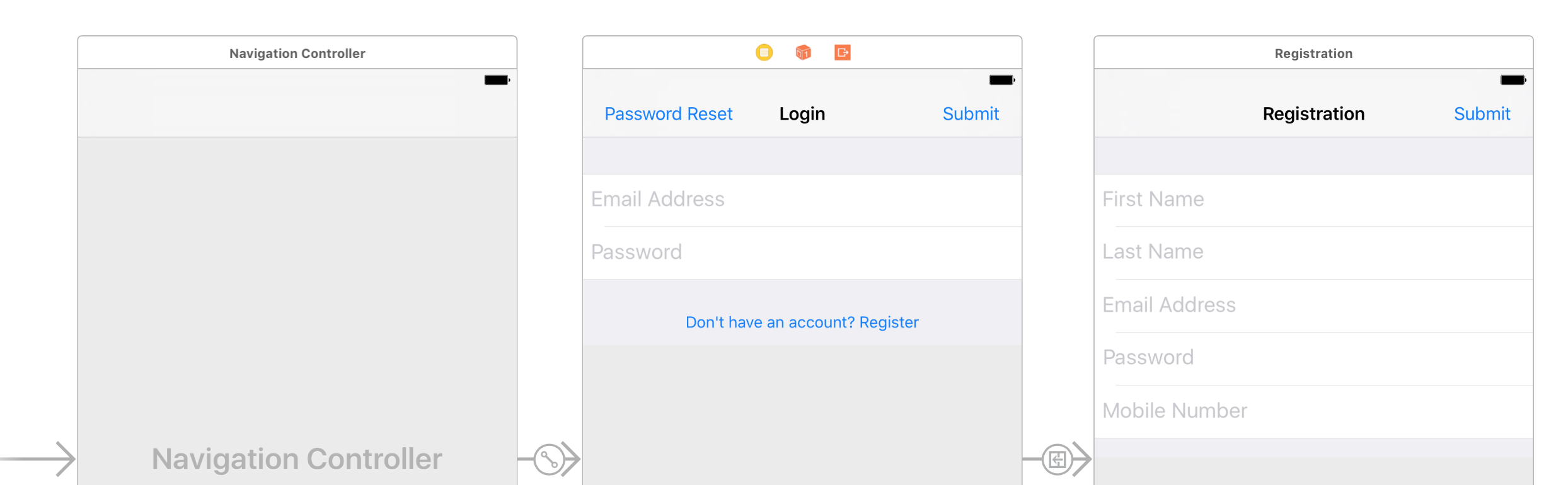
Link the form fields and submit button actions just as we did for the registration view
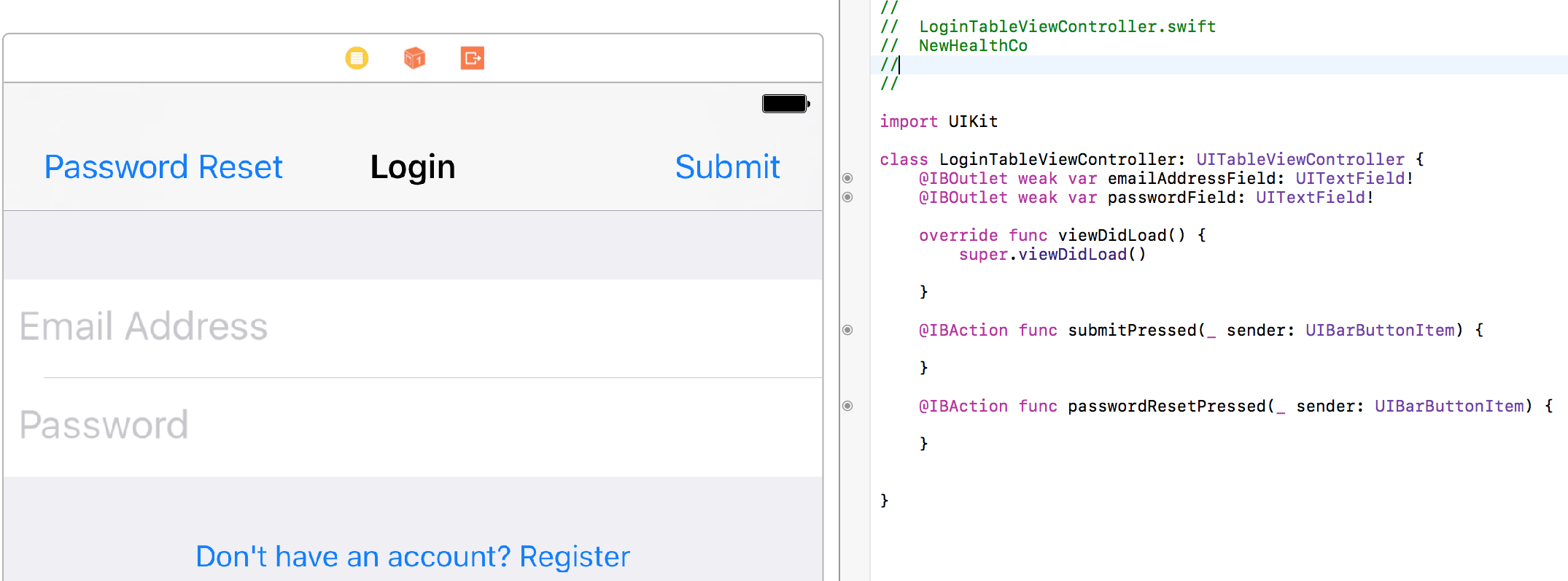
Logging in is done through the function .authenticateSessionWithEmail... which takes in 4 parameters
- Password
- Verification Token - this is an optional parameter that you only set when the user is using 2fa to verify his/her identity
- Single Use - having this set to
falsetells the Medable SDK to remember the current device for all future login attempts so that 2fa is no longer required for this specific account on this specific device
If you attempt to login on the same iOS simulator or device that you used for registration, the authentication should succeed without a verification token.
Medable.client().authenticateSession(withEmail: emailAddressField.text!, password: passwordField.text!, verificationToken: nil, singleUse: false) { (account:MDAccount?, error:MDFault?) in
	print("Callback returns account: \(account)")
	print("Callback returns error: \(error)")
}
Login Auth Response
Attempting to authenticate a user results in three common scenarios
Successful Login
Callback returns account: Optional(Id: 5784279b46b010416570d2ac Name: John Smith eMail: [email protected])Two-factor Authentication Required
For security reasons, Medable enforces two-factor authentication. Learn more here
To test this you simply register an account on one simulator/device and try to login to that same account on a different version simulator or different device. Alternatively, you could delete the app between registration and installation.
Callback returns error: Optional(kNewLocation - location -
A new location has been added to the account. Please verify it -)Or, if the user was already sent a verification code but still tries to login without passing in a verification code
Callback returns error: Optional(kUnverifiedLocation - location -
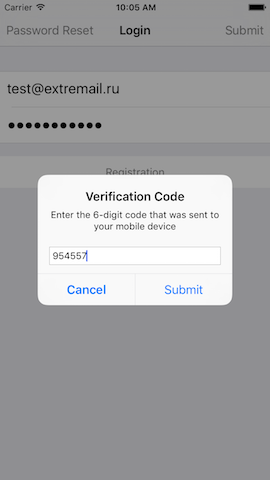
Access by this location is pending account holder verification -)So if the callback returns either of these error messages, we prompt the user to enter the 6-digit verification code that Medable automatically sends to the mobile number associated with the account (via SMS).
Create an instance of UIAlertController to collect this information and call authorize again with the code passed in as a parameter (instead of nil)
if let code = error?.code {
    if code == kMDAPIErrorNewLocation || code == kMDAPIErrorUnverifiedLocation {
        self.present(self.verificationCodeController, animated: true, completion: nil)
    }
}
Invalid email/password combination
For security reasons, the Medable API will never indicate whether the email doesn't exist in the database or the password was incorrect for an existing email.
Instead the API simply accepts or denies a given combination of email/password.
Callback returns error: Optional(kInvalidCredentials - auth -
Invalid email/password combination -)Add a "Reset Password" button to the tab bar and corresponding IBAction
@IBAction func passwordResetPressed(_ sender: UIBarButtonItem) {
    self.present(self.passwordResetController, animated: true, completion: nil)
}
When the button is pressed, we present a UIAlertController once again to collect the email address that the user is trying to login with.
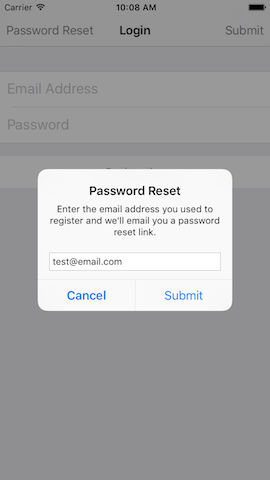
Here's the setup code for the two UIAlertController
var verificationCodeController = UIAlertController(title: "Verification Code", message: "Enter the 6-digit code that was sent to your mobile device", preferredStyle: .alert)
var passwordResetController = UIAlertController(title: "Password Reset", message: "Enter the email address you used to register and we'll email you a password reset link.", preferredStyle: .alert)

override func viewDidLoad() {
  super.viewDidLoad()

  verificationCodeController.addTextField { (textField:UITextField) in
  	textField.keyboardType = .numberPad
  }
  verificationCodeController.addAction(UIAlertAction(title: "Cancel", style: .cancel, handler: nil))
  verificationCodeController.addAction(UIAlertAction(title: "Submit", style: .default, handler: { (action:UIAlertAction) in
  	if let verificationCode = self.verificationCodeController.textFields?.first?.text {
  		Medable.client().authenticateSession(withEmail: self.emailAddressField.text!, password: self.passwordField.text!, verificationToken: verificationCode, singleUse: false) { (account:MDAccount?, error:MDFault?) in
  			print("Callback returns account: \(account)")
  			print("Callback returns error: \(error)")
  		}
  	}
  }))

  passwordResetController.addTextField { (textField:UITextField) in
  	textField.keyboardType = .emailAddress
  }
  passwordResetController.addAction(UIAlertAction(title: "Cancel", style: .cancel, handler: nil))
  passwordResetController.addAction(UIAlertAction(title: "Submit", style: .default, handler: { (action:UIAlertAction) in
  if let email = self.passwordResetController.textFields?.first?.text {
  	Medable.client().requestPasswordReset(withEmail: email, callback: { (error:MDFault) in })
  }
  }))

}
Login Complete
Once login is successful, the Medable.client().currentUser object is defined for you to access details regarding the logged-in user from any file in the project.
Updated over 1 year ago